Documents
Various documents can be created for groups of people. These can be, for example, contracts, information materials, certificates, name tags or coupons. The only limit is your imagination.
Documents can be sent and signed completely electronically or they can be printed, for example when checking in. Documents speed up work and reduce printing and thus unnecessary paper waste.
Creating a document
When you want to create a new document, go to the Documents tab and click on 'New Document'.

Name the document. After that, you can add text, images and links to the document. You can position text and images with the formatting tools offered.

Placeholders
You can also place placeholders in the document, which will be replaced in the document being sent with the recipient's (organization, volunteer, etc.) own information. Placeholders are formed from the form fields, meaning they vary depending on what information is requested on the form.
If you want to create a coupon or name tag, for example, you can add placeholders to the document for the first and last name and organization. For agreements, you can use placeholders to build a generic agreement template. This way, you don't have to create a separate document for each participant, but can send the same template to everyone.
Placeholders can be found at the end of the documents page, where you can paste them into the document by copying them as is.
Note: The date placeholder is generated on the date the document is printed.

Example of a work certificate:

Example of a point of sale agreement:

Document settings
When you have finalized the visual look of the document to your liking, you can proceed to define the page settings.
The page size is automatically A4, but you can change the size from the drop-down menu. You can choose the layout of the text to show either vertically or horizontally. If desired, you can also specify fully customized dimensions for the document.

Document preview
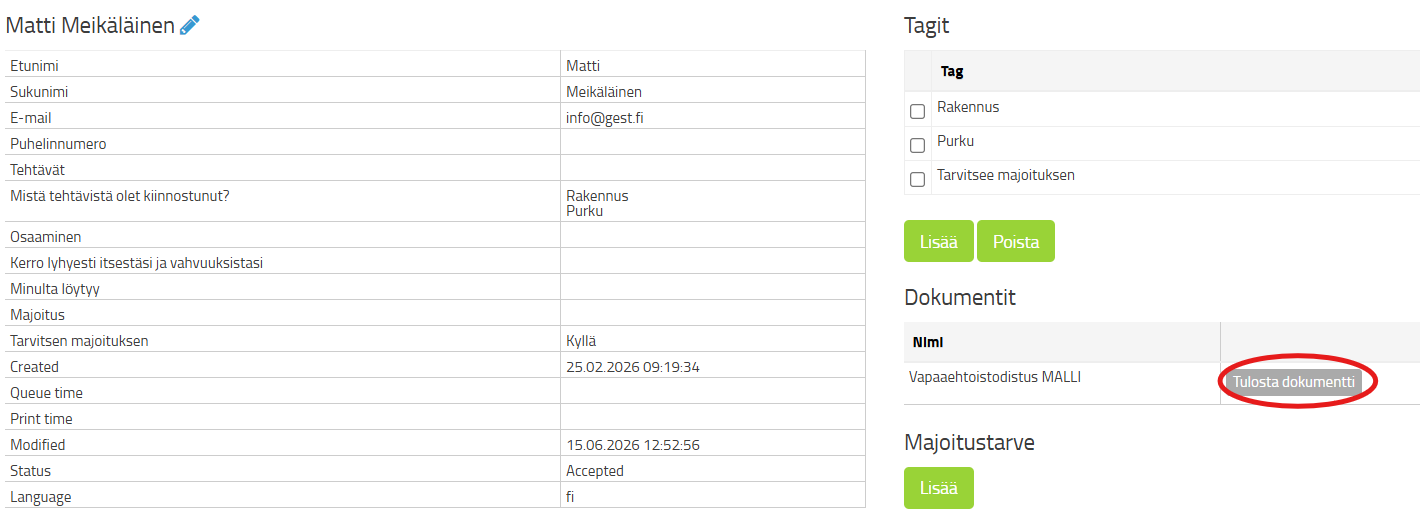
You can check the final document appearance in the person group view. Open the person's details, go to Documents and select Print the document. In this view, you can also see what information is in place of the placeholders.
VismaSign
You can also use GEST to create contracts that can be signed electronically. Documents are signed with the Visma Sign program, which must be turned on. You can find more information about using VismaSign in GEST. through here. If you are not familiar with VismaSign, learn more about the service here. www.vismasign.fi.
Currently, it is only possible to request one signature for a document, so before sending the document, make sure that the other party to the agreement (i.e. the sender of the agreement, you) has added their signature to the document.
If you use VismaSign to sign and manage the contract, select the option from the drop-down menu Send the vismasign document to be signed.
Sending the document
Documents are sent from the person group view via the Let's go menu. For this purpose, it is a good idea to create your own ready-made email template that contains a link to the document and a message appropriate to that document. Creating email templates is discussed in section External communication.
- Select people first, to whom you want to send the document.
- Then select from the Let's go menu Send a document.
- Select the email template you created from the message templates that contains the link %recipient.documents%
- Finally, click close in.
If you use VismaSign to sign and manage the agreement, select the Send vismasign document for signature option from the drop-down menu.
Document link
The document link sent to the email is personal. The same link from behind are found all to that person sent to the person documents. If you first send a person an employment contract, for example, and later, after the event, an employment certificate, both documents will appear on the same page.
New documents automatically appear as they are sent to a person. This way, the recipient doesn't have to search through different emails or use multiple links, but can find all the documents sent to them in one place.

 English
  Finnish