Input of additional contacts
GEST enables the registration of several people with the same form by means of the "Enter additional contacts" function. This feature is especially handy for group registrations or avec invitations, for example. In this case, one person can use the same registration form to enter the information of several people on their behalf.
Kun haluat aktivoida lisäkontaktien syötön, klikkaa Salli lisäkontaktien syöttö -täppä aktiiviseksi Julkaisuasetukset-välilehdellä. Jos haluat rajoittaa syötettävien lisäkontaktien määrää, merkitse kenttään se lukumäärä, montako lisähenkilöä voidaan ilmoittaa per lomake. Tätä ei ole välttämätöntä tehdä, mutta silloin lomakkeella voi ilmoittaa rajoittamattoman määrän henkilöitä.

After saving, the Additional Contact Fields tab will appear at the top. Here you can edit the additional contact registration form. You can define the fields that will be populated with additional contact information. The fields in the form can be exactly the same, or you can select only some of the questions and ask for, for example, name and contact information.
Tick haluamasi kentät (selected). Voit myös määrittää, ovatko kentät pakollisia (required). Jos haluat, että tietyt tiedot ovat samat kuin lomakkeen täydentäneen henkilön, voit rastittaa vaihtoehdon kopioi ensimmäisestä. Tämä nopeuttaa henkilöiden tietojen täydentämistä esimerkiksi silloin, jos kaikki henkilöt työskentelevät samassa yrityksessä (organisaatio kenttää ei tarvitse töydentää jokaisen henkilön kohdalla).
Huomioithan, että et voi tässä kohtaa luoda lisäkontaktien tietojen täydennystä varten erillisiä kenttiä. Voit hyödyntää ainoastaan alkuperäisen lomakkeen kenttiä.

Filling out the form and adding additional contact information.
When multiple people can be registered on a form, tabs will appear. First, the original person enters their own information.

After the person has first entered their own information on the form, they can complete the information for additional contacts on the next page.
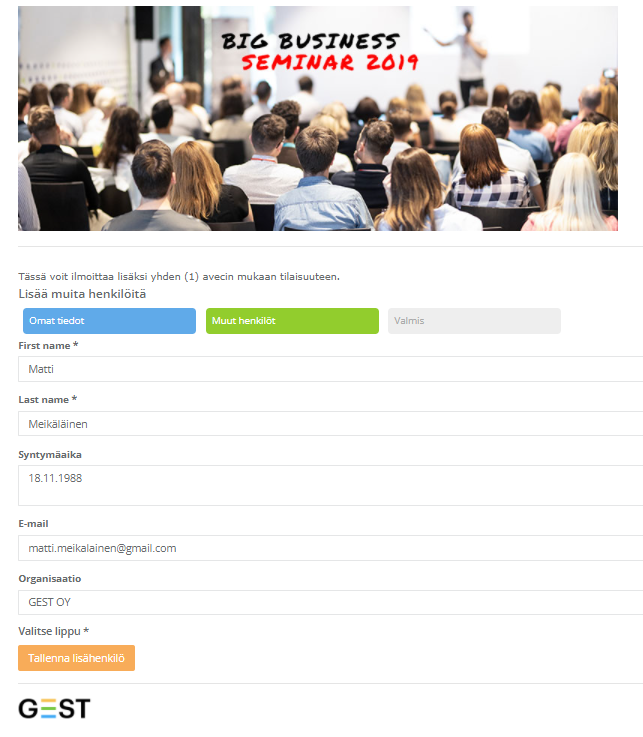
Kun tarvittavat tiedot on lisätty ja tallennettu, henkilö ilmestyy kohtaan Muut henkilöt. Henkilöitä voi lisätä lomakkeelle niin kauan, kunnes maksimi tulee täyteen. Ohjelma kertoo, kun määrä tulee täyteen.
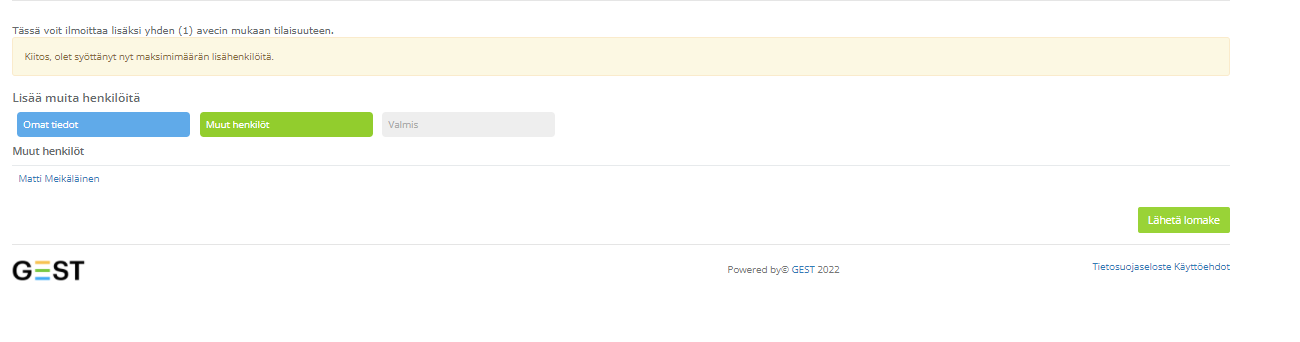
You can edit the person's information before submitting the form by clicking on the name of the person you added. When all information is filled in correctly, click Submit form.
GEST creates its own line for each person entered in the form in the personnel group view, allowing each person's information to be viewed individually. A star appears in the status of the person who has registered through a group to showcase that they have filled out the form also on behalf of other people. The details of the additional contact, on the other hand, show who the contact person is.
 English
  Finnish