Input of additional contacts
GEST enables the registration of several people with the same form by means of the "Enter additional contacts" function. This feature is especially handy for group registrations or avec invitations, for example. In this case, one person can use the same registration form to enter the information of several people on their behalf.
When you want to activate the entry of additional contacts, Click the Allow additional contact entry button on the Publishing Settings tab to activate it. If you want to limit the number of additional contacts that can be entered, enter the number of additional people that can be entered per form in the field. This is not necessary, but then you can enter an unlimited number of people on the form.

After saving, the Additional Contact Fields tab will appear at the top. Here you can edit the additional contact registration form. You can define the fields that will be populated with additional contact information. The fields in the form can be exactly the same, or you can select only some of the questions and ask for, for example, name and contact information.
Tick desired fields (selected). You can also specify whether the fields are required. If you want certain information to be the same as the person who completed the form, you can check the option copy from the first. This speeds up filling in personal information, for example if all people work for the same company (the organization field does not need to be filled in for each person).
Please note that you cannot create separate fields for additional contact information at this point. You can only use the fields from the original form.

Filling out the form and adding additional contact information.
When multiple people can be registered on a form, tabs will appear. First, the original person enters their own information.

After the person has first entered their own information on the form, they can complete the information for additional contacts on the next page.
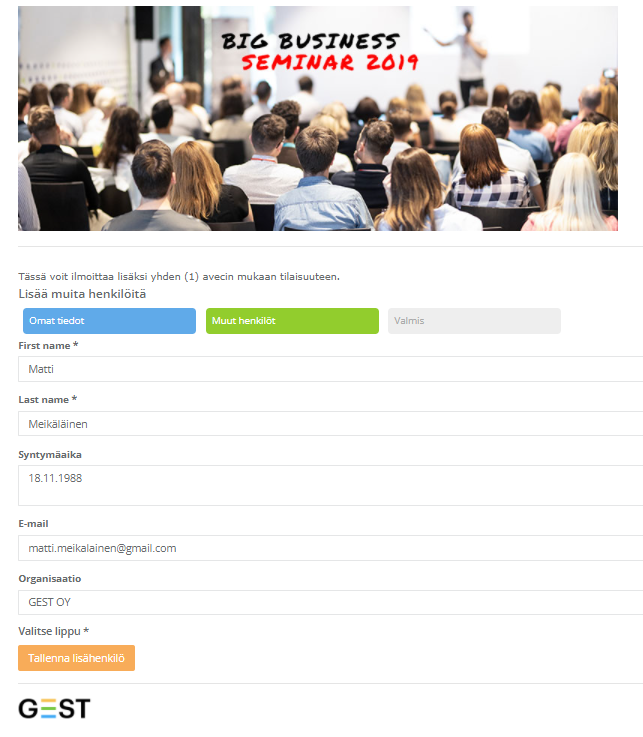
Once the necessary information has been added and saved, the person will appear in the Other people section. People can be added to the form until the maximum number is reached. The program will notify you when the number is full.
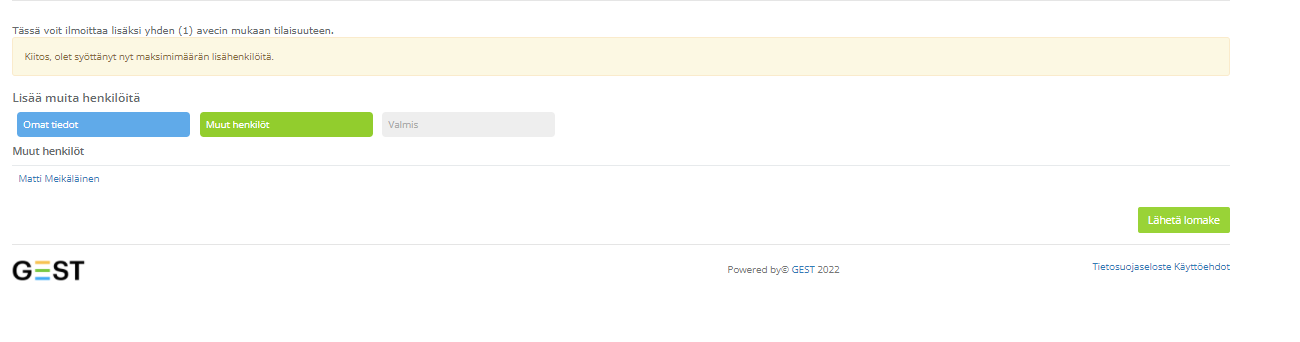
You can edit the person's information before submitting the form by clicking on the name of the person you added. When all information is filled in correctly, click Submit form.
GEST creates its own line for each person entered in the form in the personnel group view, allowing each person's information to be viewed individually. A star appears in the status of the person who has registered through a group to showcase that they have filled out the form also on behalf of other people. The details of the additional contact, on the other hand, show who the contact person is.
 English
  Finnish